Remote Controlled Image Slideshow Control
The RCWeb Slideshow Control app (app/slideshow-c) is the phone and tablet controller for the RCWeb Slideshow Display (app/slideshow). Together they create a Remote controlled Image Slideshow for shared screens, TVs, projectors, monitors, and kiosk displays.
Overview
This app lets a phone, tablet, or desktop browser choose local images and send them to a remote controlled image slideshow display in the same RCWeb room. It can build the image playlist, reorder slides, remove images, clear the slideshow, change slide timing, choose the display transition, choose image scaling, and show or hide display overlays.
The control app is designed for touch use. The image playlist sits directly below the Add Images button so selected photos can be reviewed and reordered before adjusting playback options.
How to use
- Open
/slideshow/on the main display. - Scan the QR code shown by the display.
- Press Add Images and select one or more photos from this device.
- Keep the controller open while the display downloads and caches the selected images.
- Drag images in the playlist to change their order.
- Tap an image to show it on the display, or use the remove button to take it out of the slideshow.
- Adjust slide duration, transition, scaling, information display, and QR visibility as needed.
- Use Clear to empty the slideshow and return the display to its waiting screen.
Features
- Add multiple local images at once.
- Review selected images as a playlist with thumbnails and cache status.
- Drag playlist items to reorder the slideshow.
- Tap a playlist item to jump the display to that image.
- Remove individual images.
- Clear the full slideshow.
- Rebuild the playlist view from display state when the control app is refreshed.
Playback controls
- Set slide duration from 1 to 60 seconds. The default is 10 seconds.
- Choose No transition, Fade, or Ken Burns.
- Choose Fill screen, Add border, or Stretch scaling.
- Show or hide the display's slideshow information panel.
- Show or hide the display's QR code and fullscreen controls.
Scaling options
Fill screen covers the whole display and may crop the image.
Add border keeps the whole image visible and adds border space only where needed.
Stretch fills the screen exactly, which can distort photos if their shape does not match the display.
Multiple controllers and displays
Several control browsers can be open in the same room. Each controller sends commands to the slideshow display app and receives state updates back from the display, so multiple people can manage the same remote controlled image slideshow.
The slideshow is display-led after images are cached. That means a refreshed controller can recover the playlist and thumbnails from the display, but a brand-new display still needs to load and cache the images on its own device before it can resume a previous slideshow.
Related app
Use this app with RCWeb Slideshow Display (app/slideshow).
Screenshots
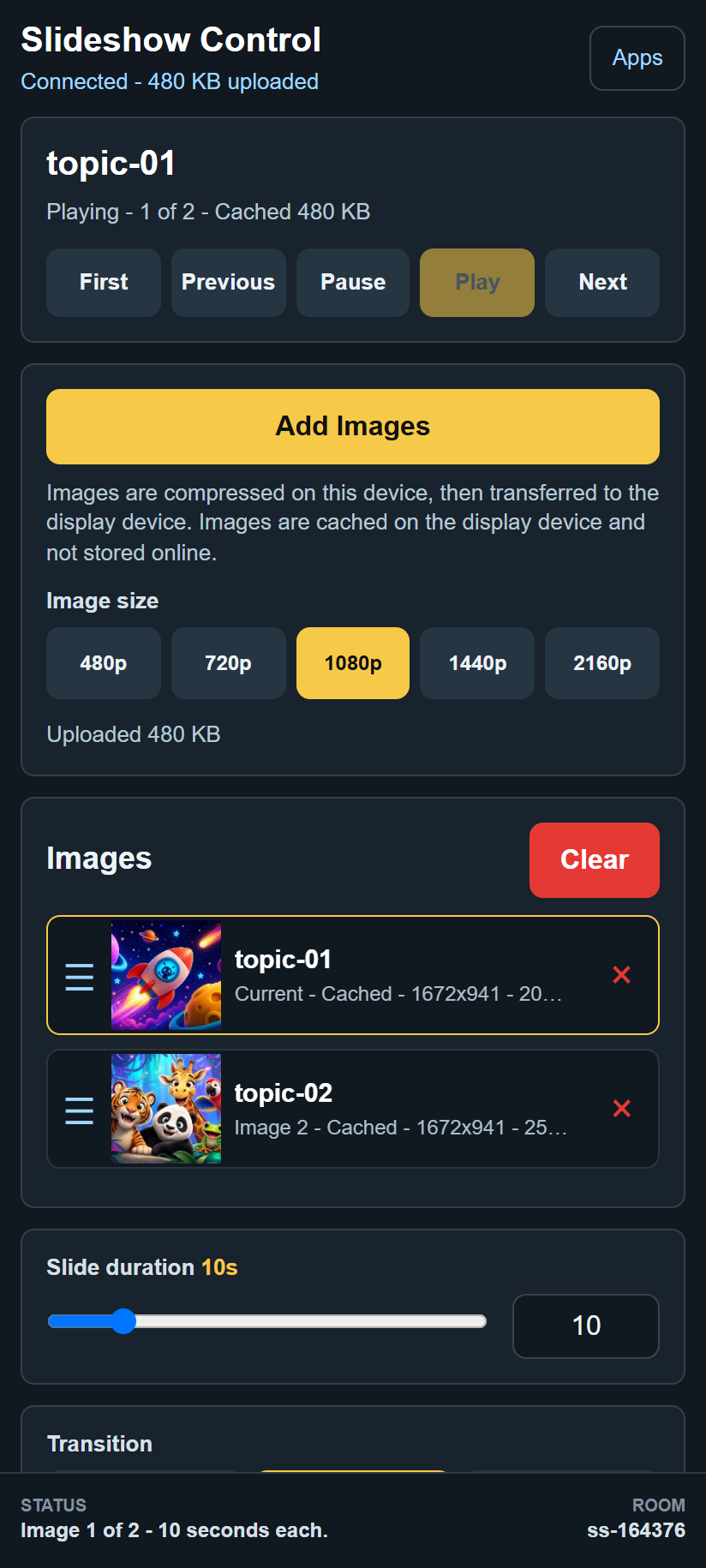
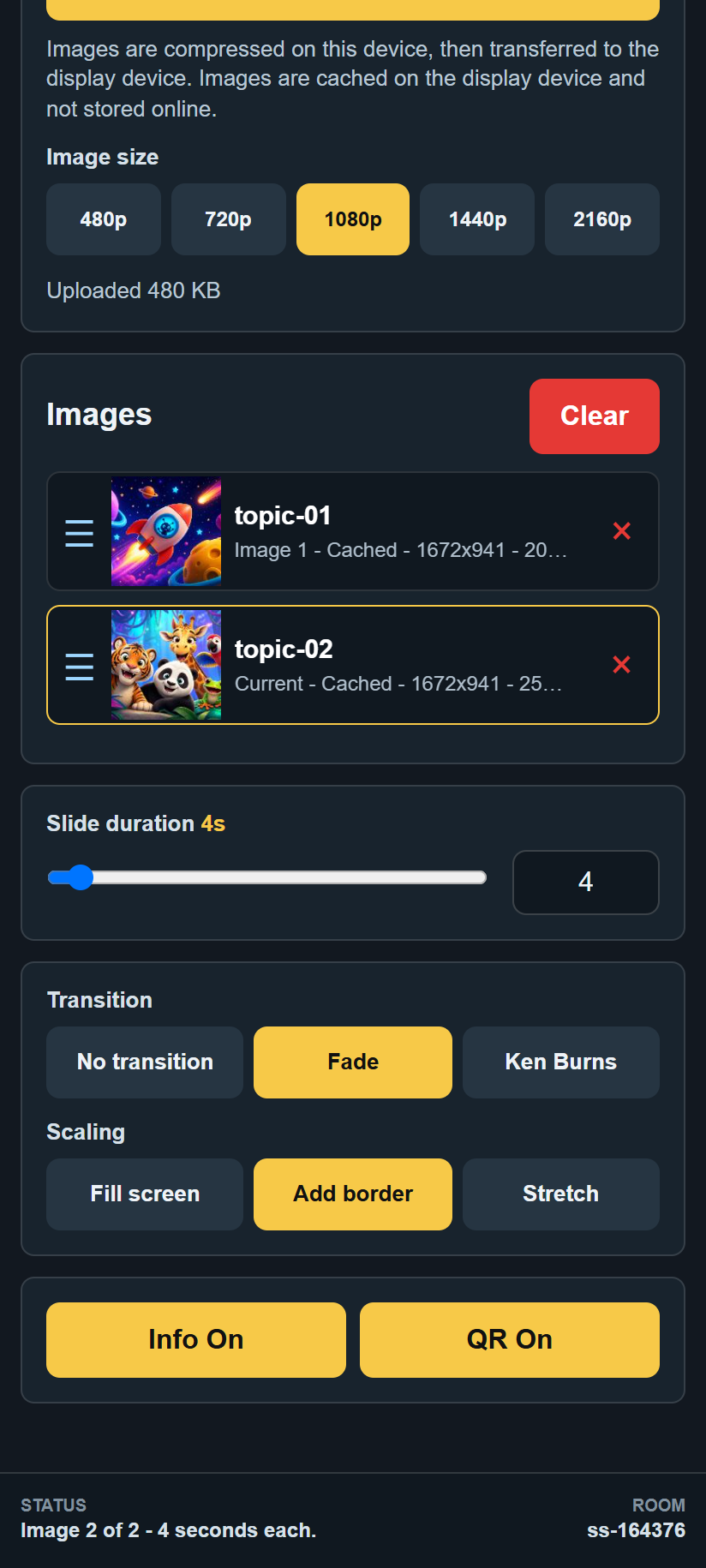
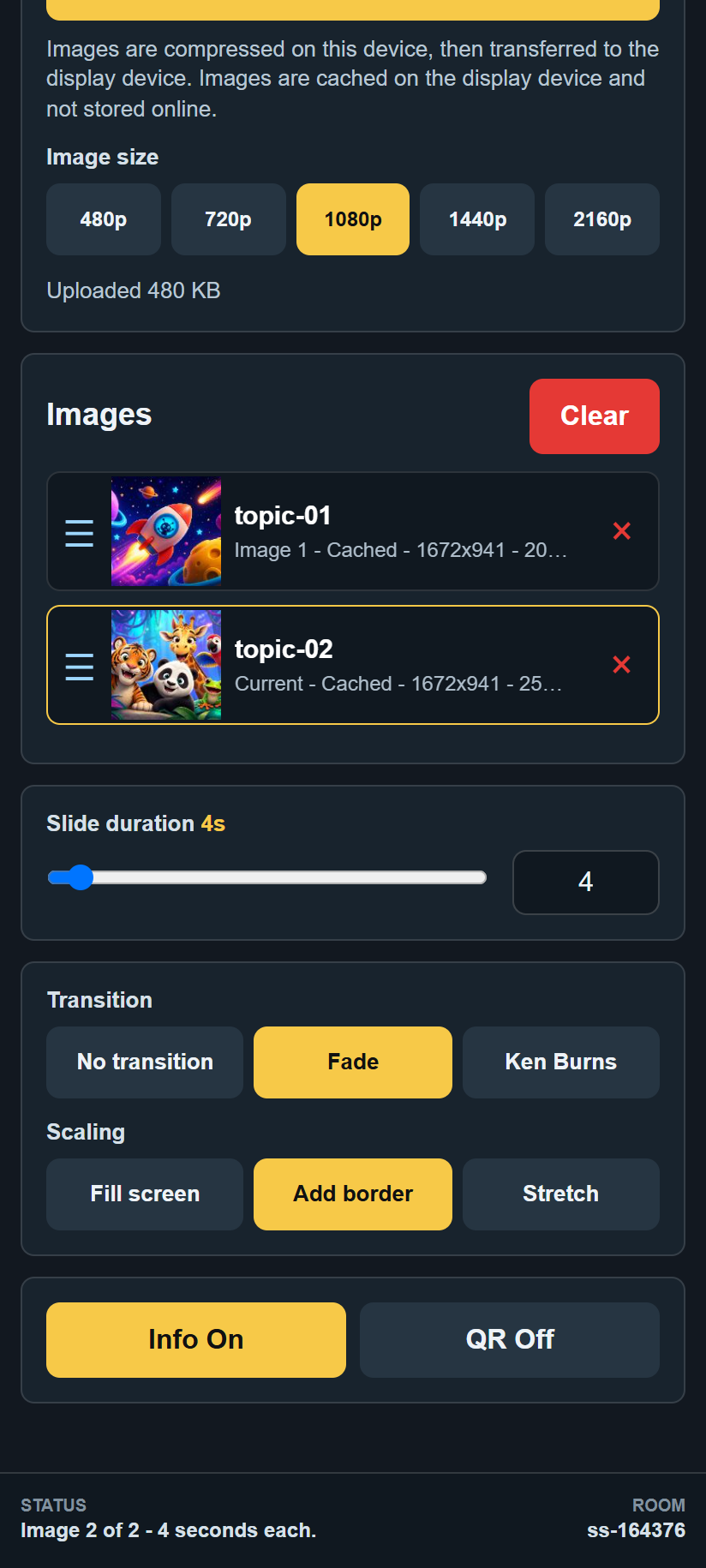
Image quality and availability
Choose an image-size preset appropriate to your display. Larger presets preserve more detail but take longer to transfer. Small source images are not enlarged.
Keep the source tab open until the display confirms the images are cached. Then a refreshed controller can recover the playlist from the display. A new display needs its own downloaded copy.