3D Viewer
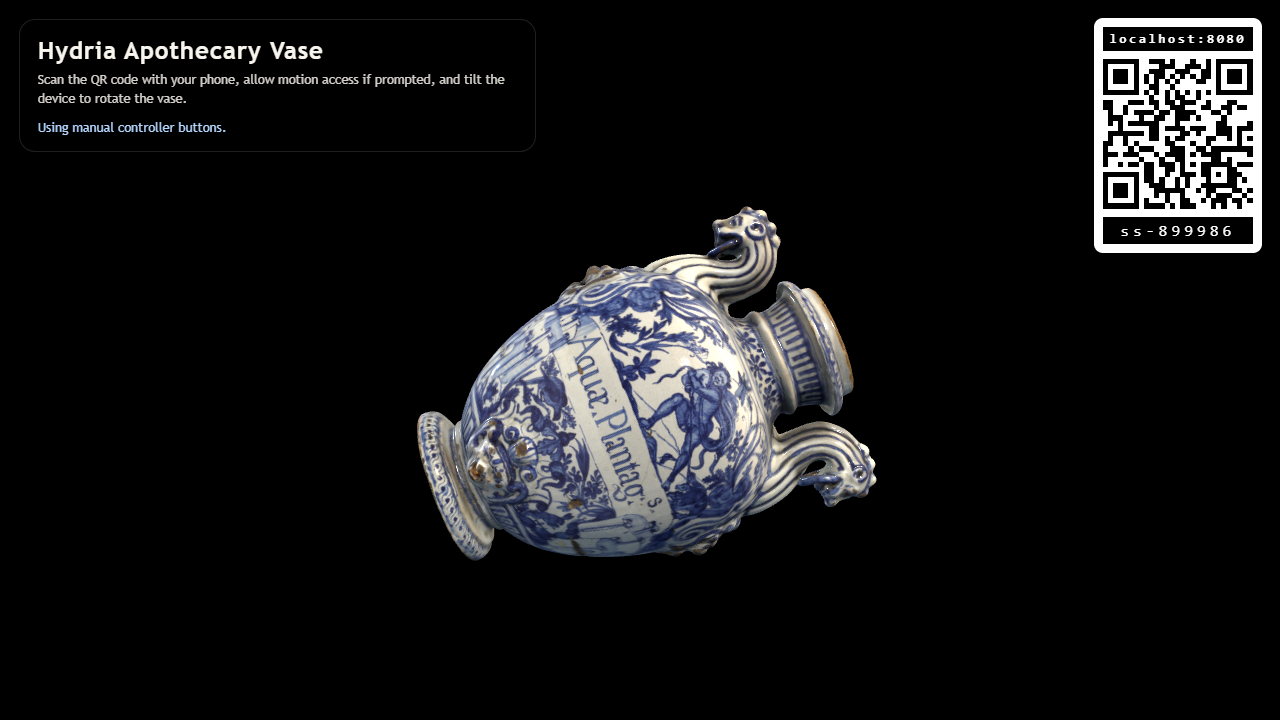
Explore a detailed 3D Hydria Apothecary Vase on your screen. Turn it with a mouse or touch, or use your phone as a motion controller to tilt and rotate the vase from across the room.
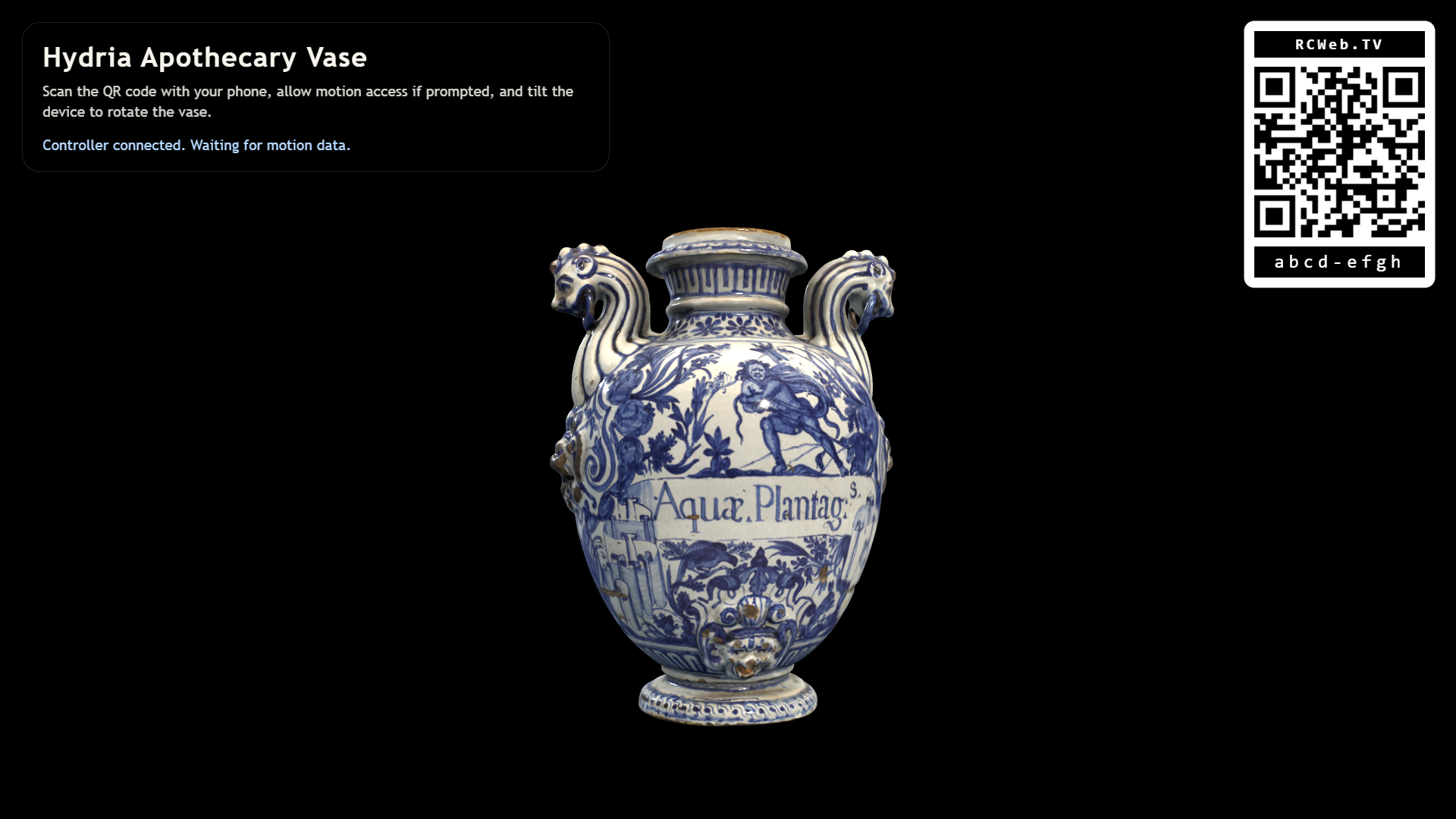
Features
- A detailed vase model you can inspect from different angles.
- Drag to rotate, with mouse-wheel or two-finger pinch zoom on the viewer.
- Phone motion control, with manual rotation buttons when motion is unavailable.
- A QR code for connecting a phone to the same room.
- A loading indicator while the model downloads.
Get started
- Open 3D Viewer on the screen where you want to display the vase.
- Wait for the model to finish loading.
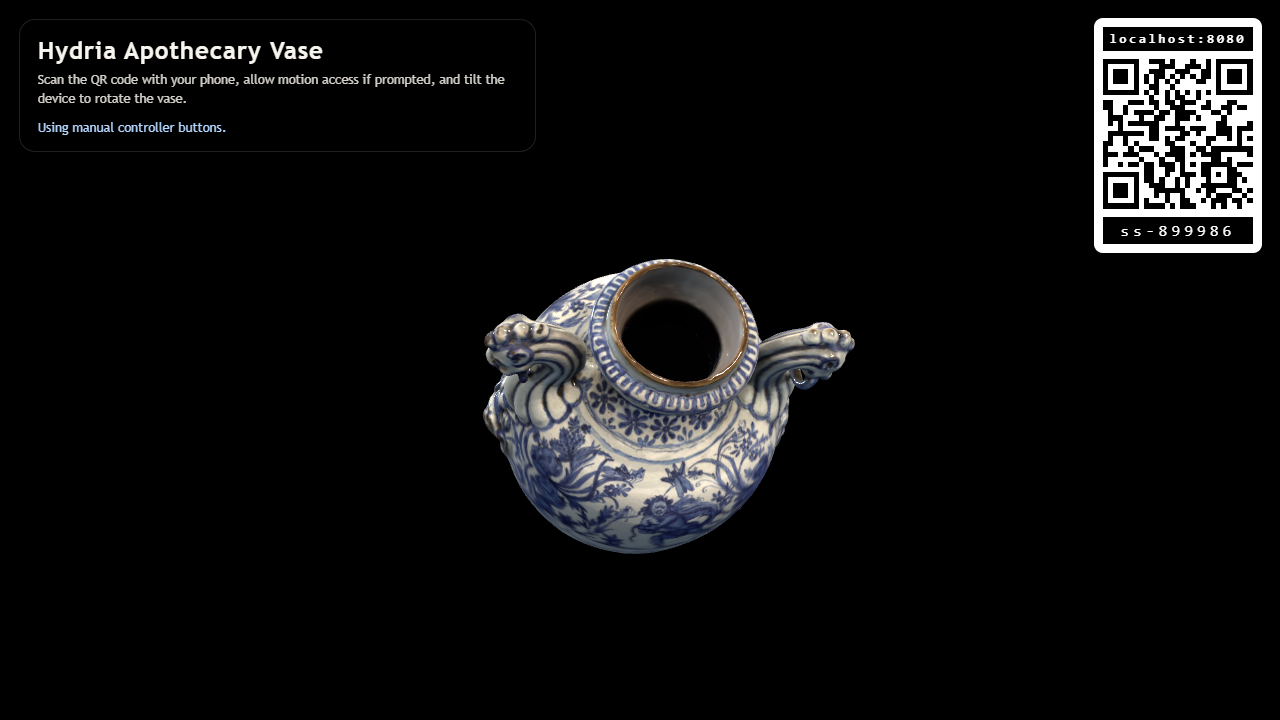
- Drag across the model to rotate it. Scroll the mouse wheel or pinch with two fingers to zoom.
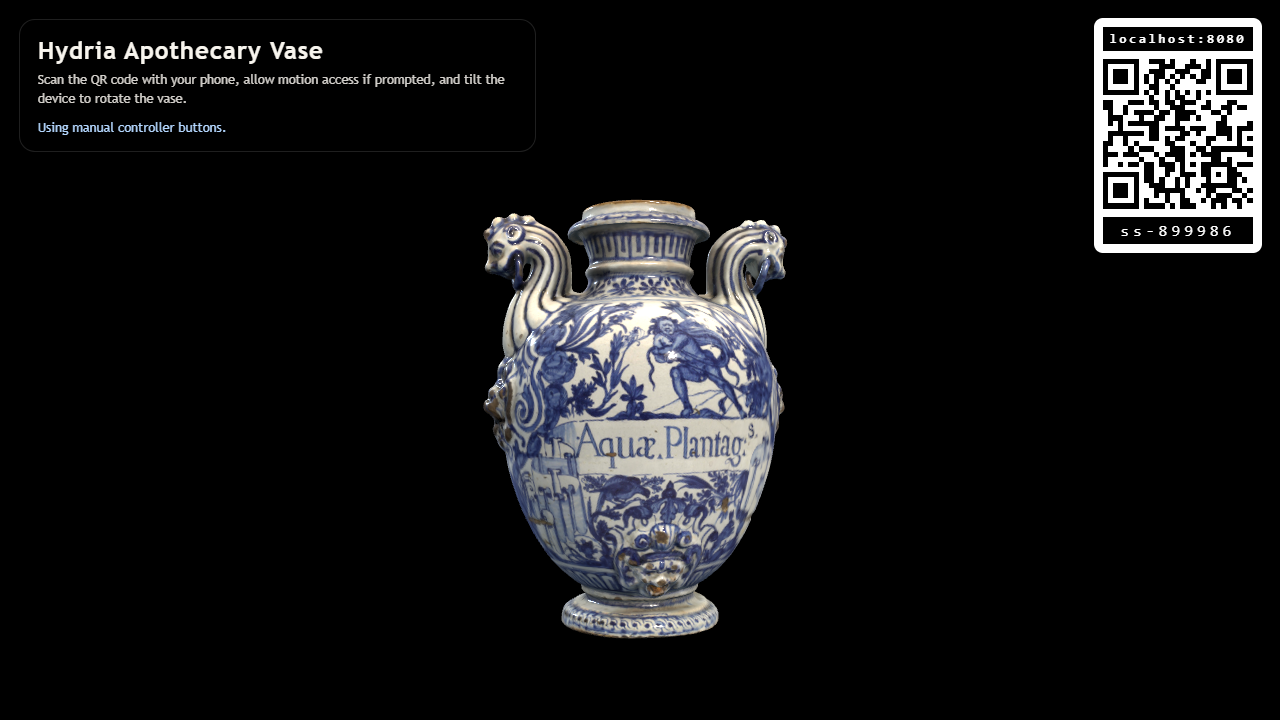
- To control it from a phone, scan the QR code on the viewer.
- On the phone, tap Enable Motion and allow motion access if prompted. Hold the phone comfortably, then tilt and turn it to move the vase.
The viewer and phone must be connected to the same RCWeb room. The QR code opens the controls for that room.
Phone controls
Tap Recenter Phone to set a comfortable neutral position, then move the phone gently. If turning your phone sideways makes the pose feel wrong, recenter again.
If motion is unavailable or permission is denied, the phone shows Manual Rotation buttons. Press or hold Tilt Up, Tilt Down, Turn Left, Turn Right, Roll Left or Roll Right.
One phone controls rotation at a time. Enabling motion or using a manual rotation button on another phone takes over control; the previous phone displays a takeover message. Once phone control is active, dragging on the viewer no longer rotates the vase, but wheel and pinch zoom remain available.
On the phone, Back to apps returns to the app list in the same room.
Screenshots
If something does not work
The viewer needs a browser with working 3D graphics support. Allow time for the model to download; if loading fails, check the connection and reload the viewer. If the phone cannot provide motion readings, use the manual buttons that appear instead.