Cosmic Voyage
Choose a world. Follow a mission. Take the helm.
Explore 27 destinations, from our Moon to the Andromeda Galaxy, including spacecraft and Mars robots. Drift around a planet, take a gentle guided tour or steer with your phone. Discover real spacecraft journeys and read facts at every stop. Designed for curious explorers aged 10 and up.
Start exploring
- Open Cosmic Voyage on a display, or choose it in Visuals in the RCWeb app menu.
- Scan the QR code with your phone. Controllers already in the room follow when the app launches.
- On your phone, choose a destination to expand its facts, then tap Travel to. If someone else is piloting, the button lets you take control and travel.
- Open Pilot to fly freely. One person pilots the shared display at a time; everyone can browse the facts and missions independently.
Places to visit
- The Sun and all eight planets.
- The Moon, Io, Europa, Titan, Enceladus and Triton.
- Ceres, Pluto and Comet 67P.
- Voyager in interstellar space.
- Explore Voyager's curved antenna dish, instrument booms, cameras, three power generators and Golden Record cover in 3D. Slender parts are enlarged and long booms shortened to remain visible on TV screens.
- Alpha Centauri, the Orion Nebula, the Milky Way centre and Andromeda.
- The James Webb Space Telescope, with its 18 mirror segments and five sunshield layers.
- The International Space Station, with its laboratory modules, truss and solar arrays.
- Perseverance and Ingenuity: descend to Mars and inspect a six-wheeled rover and a twin-rotor helicopter on the planet's surface.
The phone's Spacecraft filter groups Voyager, Webb, the ISS and the Mars robots. Each is a separate destination with its own facts and journey record. Spacecraft models are simplified exhibits; the station is a representative assembly, not a live configuration, and Ingenuity is shown intact with its rotors stationary.
The Mars stops share a detailed surface with rocks, gravel, contact shadows and a dusty sky. Drag to look around each vehicle and scroll to zoom; the camera stays above the ground. Choose Mars to return to the planet view. Vehicle sizes and their nearby positions are arranged for learning, not a reconstruction of their actual locations or relative scale.
Flying and watching
On the phone, use the pad to look around. Hold Forward, Back, Slide left or Slide right to move. Release to stop moving. Stop also cancels a trip or tour. Recentre returns to a comfortable view of the current destination. Home to Earth takes you back home.
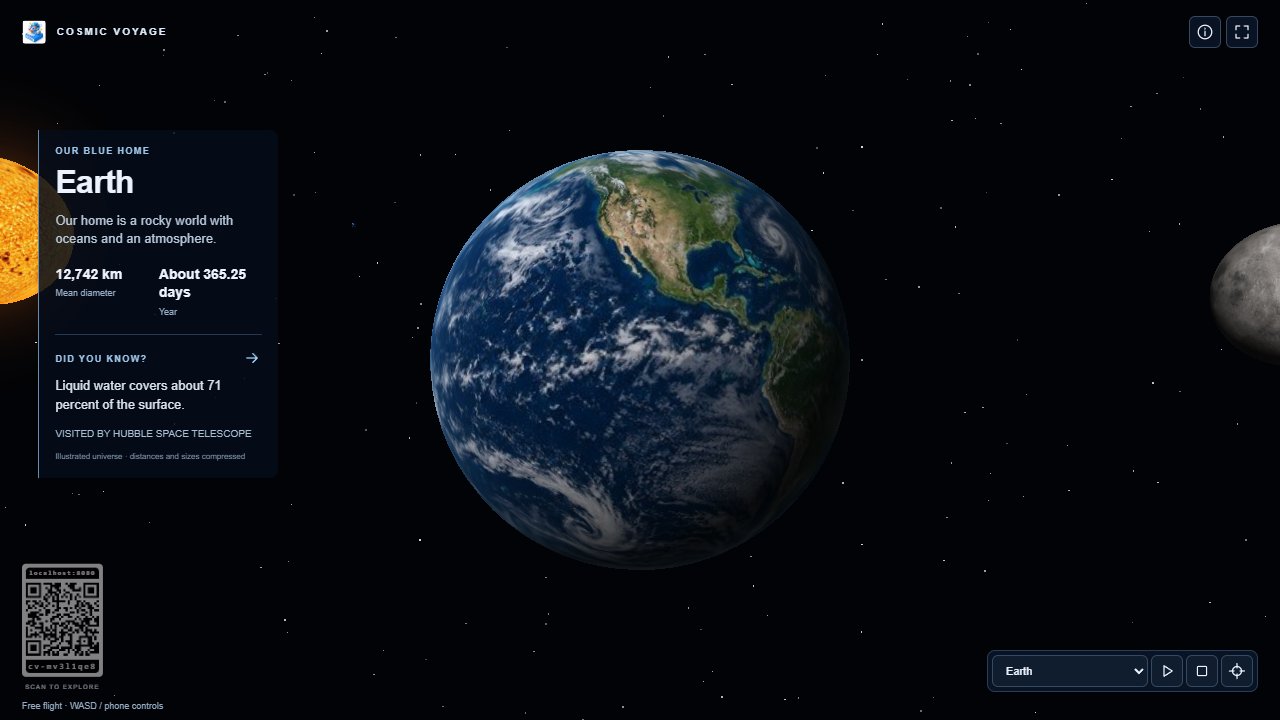
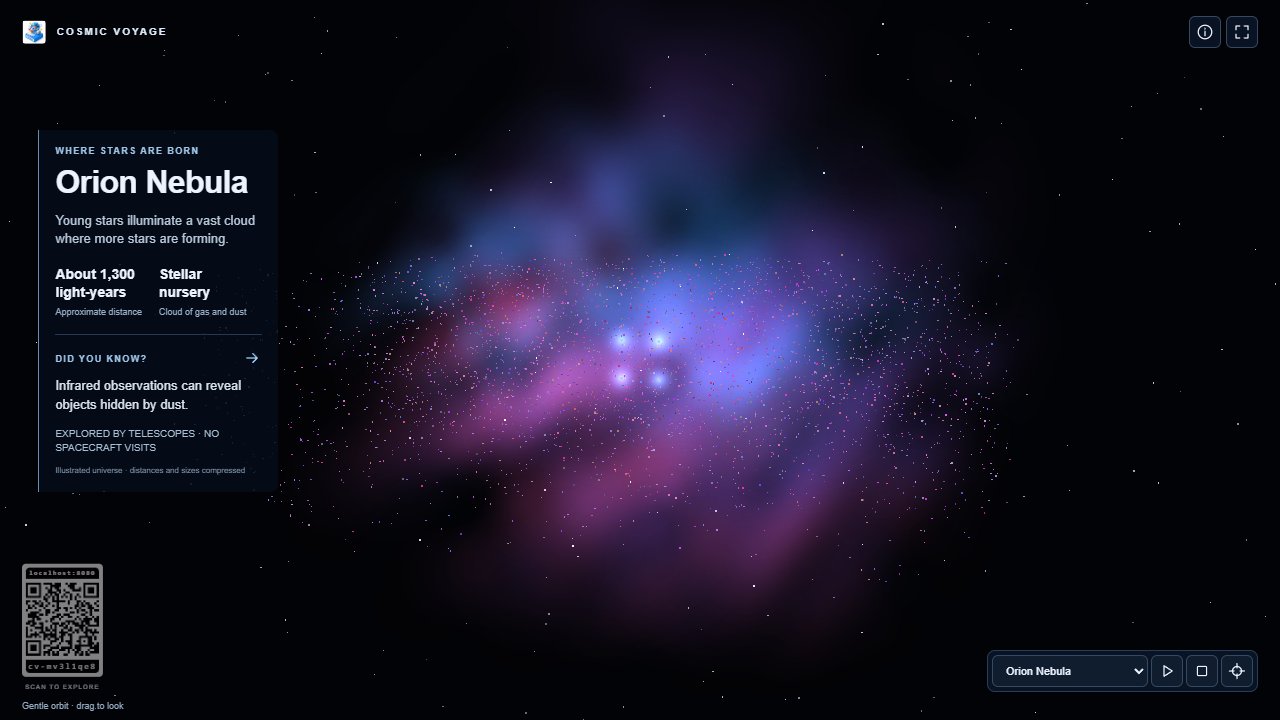
The destination selector is focused when the viewer opens. TV remote arrow keys use normal browser navigation and destination selection; they do not steer the camera. With focus outside the controls, use W/S to fly forward/back, A/D to slide and Space to stop. Drag the scene to turn the current object: its surface follows your mouse or finger, stays centred and keeps the same viewing distance. Release to hold that angle. Scroll the mouse wheel over the scene to zoom in or out. Choosing a destination in the bottom-right selector starts travel immediately. The three icons beside it switch Demo on or off (play/pause), stop movement (square), and recentre the view (crosshair). Select Earth to return home.
Demo starts automatically when the viewer opens and continuously visits each destination, staying about 24 seconds at each stop. Choose Manual on the phone to take control, or use Travel to inside an expanded destination. Manual mode stays selected until you start Demo again. Hold view to read, under Pilot display settings, pauses camera motion and fact changes.
Use the information icon at the top right to hide the display's information panel, and the arrow beside Did you know? to see another fact. The compact QR invitation sits at the bottom left. The phone can also hide it, select graphics detail and show an enlarged schematic spacecraft at visited destinations.
Learn from real journeys
Tap a destination on the phone to expand its measurements, three facts and source link in place. Spacecraft & journeys within that selection explains selected visiting spacecraft, their launch and encounter dates, and approximate elapsed journey times. Some journeys include years of gravity assists or time already spent exploring nearby worlds.
Flybys, orbit insertion and landings are labelled separately. No spacecraft has visited the distant star systems, nebula or galaxies shown here: these are telescope destinations. Dates and facts include NASA, ESA and ESO source links. The catalogue was reviewed on 10 October 2026; the Sagittarius A* explanation and six new destinations were reviewed on 11 October.
Understanding the view
Travel starts immediately and usually takes about four seconds in the app. Journeys to or from the Mars vehicles take about six seconds to show the descent or departure. Real journeys can take months or years. Distances and body sizes are compressed, positions are arranged for exploration, and surfaces, rings and spacecraft are illustrations. The view is not a live sky map, a precise planetary atlas or a simulation of gravity. Colours in distant scenes help reveal structure and are artistic interpretations.
The Milky Way centre stop shows a close-up radio-view illustration of Sagittarius A*: a dark shadow surrounded by bright emission from hot gas. Orange represents radio brightness. This diagram stays facing you when you move around it; it is not a 3D reconstruction or a view of the entire galactic centre.
The six newest destination cards use views of their 3D scenes; other cards use the original AI-generated artwork. The flight scene wraps detailed AI-generated maps around the planets, moons and other nearby worlds, showing clouds, craters and ice. Io has sulfur-coloured volcanic terrain and Triton has pale frost and plume streaks. These are artistic approximations. Older televisions use smaller versions of the maps, and illustrated surfaces remain available if a texture cannot load.
Older displays and reconnecting
Lean graphics reduces rendering resolution while keeping text sharp. Older Tizen televisions select a lighter scene automatically. Frame rate still depends on the device. If WebGL is unavailable or fails, an illustrated Canvas view keeps destinations, facts and room controls available; it has less depth than the 3D view.
Movement stops if a phone's input disappears. When reconnecting, wait for the display status and take control again if needed. An additional display follows the main display; if the main display leaves, another connected display takes over. Refresh restores the last saved destination and display preferences for this room and starts Demo again.
Use Back to apps on the phone to return to RCWeb's app list in the same room. It leaves the voyage running on the display.