Fractal Control
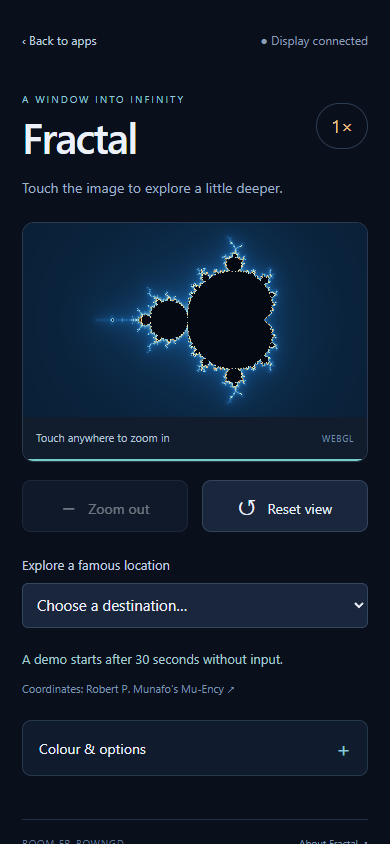
Explore the shared Fractal display from your phone. Tap a matching preview, choose a destination or change the colours while everyone sees the same view.
Features
- A touch preview of the display's current view and colours.
- Eighteen destinations with thumbnail previews.
- Six palettes, optional colour animation and 3D relief shading.
- Adjustable detail, zoom pace, demo timing and QR visibility.
- Several phones can explore together.
Join and explore
Open Fractal on the display, then scan its QR invitation or launch Fractal from the RCWeb app menu. Both screens must be in the same room.
Tap the preview to zoom towards a point. Use Zoom out to widen the view and Reset view to return to the whole Mandelbrot set. With keyboard focus on the preview, Enter or Space zooms at its centre. Wait for each zoom to finish before choosing another; Reset remains available during a journey.
Open Explore a destination and select a thumbnail to travel there. The gallery has eighteen places to visit; scroll to see them all. Thumbnails use Classic colours, while your journey uses the selected palette.
Tours and appearance
Choose Start demo for an immediate tour or Stop demo to stop after the current zoom step. Reset ends a journey immediately. By default, the display starts a tour after a minute without input and rests for five seconds at each destination.
Open Colour & options to choose Classic, Ocean, Fire, Aurora, Rainbow or Monochrome; adjust colour offset, spacing or reversal; or enable Animate palette for a slow colour cycle. 3D relief shading adds a raised, textured appearance. Animation and relief are off by default.
You can also adjust detail, zoom step, invitation visibility and the separate zoom-in and zoom-out times. Their defaults are three seconds in and one second out, with choices from 0.7 to eight seconds. Demo delay offers Off, 30 seconds, or 1, 2, 5 or 10 minutes. Turning automatic tours off still allows manual tours and destination visits.
Keeping your view
Preferences are saved on the display. Reconnecting your phone restores the live view while a display remains open. Back to apps returns this phone to the app menu in the same room and leaves the display running. See the Fractal guide for display installation and more examples.
Screenshots