Golf Control

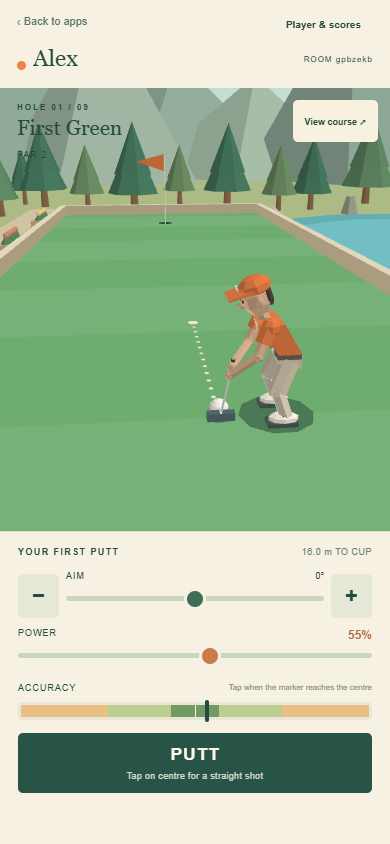
Your personal 3D course view and putter for Golf. Up to eight players take shots simultaneously, using separate phones in the same RCWeb room.
Features
- Aim by dragging, slider, buttons or keyboard.
- Choose power and time PUTT on the moving accuracy bar.
- See the course, other golfers and the round scores.
- Keep your place when reconnecting in the same browser tab.
Join and play
Scan the QR panel on the Golf viewer. The first connected player is the captain: tap the large Start the round button on the main screen when everyone is ready. After the ninth hole, the same button offers Play another round. Set or change your name in Player & scores whenever you like; it uses the shared RCWeb name preference.
Drag across the course or use the aim slider to turn your shot. Minus and plus make one-degree adjustments. The golfer and camera turn smoothly as you aim. Set Power, then tap PUTT when the moving Accuracy marker crosses the centre. The tap captures your timing and the aim direction currently shown. The golfer swings, the ball moves at club contact, and your camera follows the shot. Wait for the ball to settle before putting again.
Everyone takes turns at the shared starting tee. If your ball is close enough to another golfer for your stances or clubs to overlap, your golfer waits nearby and a small coloured marker holds the ball's place. The PUTT button names who goes ahead of you. Your golfer steps into position after their shot finishes, then the ball and controls return. Golfers elsewhere on the course keep playing at the same time.
View course gives you an overview; tap again to return behind your golfer. Other players remain visible. Player & scores shows the current scores and lets you rename your golfer without losing progress. The captain can start another round after the ninth hole.
When you finish a hole, your golfer moves to a separate place on the far-side spectator terrace. Your camera looks back over the green so you can watch the remaining players. Putting stays disabled until the next hole.
Keeping your place
Refreshing the same tab reconnects to your player and score. Keep that tab open if the app reports that browser storage is unavailable. When the display stops sending updates, putting pauses and the phone reconnects automatically.
A slow connection can delay the start of a putt. Wait for the display to confirm the shot before trying again.
Opening or refreshing the only Golf display starts a fresh lobby at hole one and clears previous scores. Phones rejoin automatically with their names; power and camera settings return to their defaults. Press Start the round to play again. If another Golf display is still running, it can keep the live round and scores.
The Back to apps link returns this phone to the app list in the same tab and room. It leaves the viewer running.
Compatibility
Portrait phones are the primary layout; landscape and mouse/keyboard input also work. A browser with working WebGL 1 graphics is required. Left/right arrows adjust aim and Space takes a putt. Open the shared display using an address reachable by your phone, such as the server's LAN address rather than localhost.
See the Golf manual for the nine holes, scoring, reconnect rules and browser support.