Fractal
Follow a spiral. Discover an island. Let the colours drift.
Turn your screen into a window onto the Mandelbrot set. Explore with a tap, visit eighteen hand-picked destinations, or settle back and watch a slow tour unfold. Use the display on its own, or invite phones to steer the same view together.
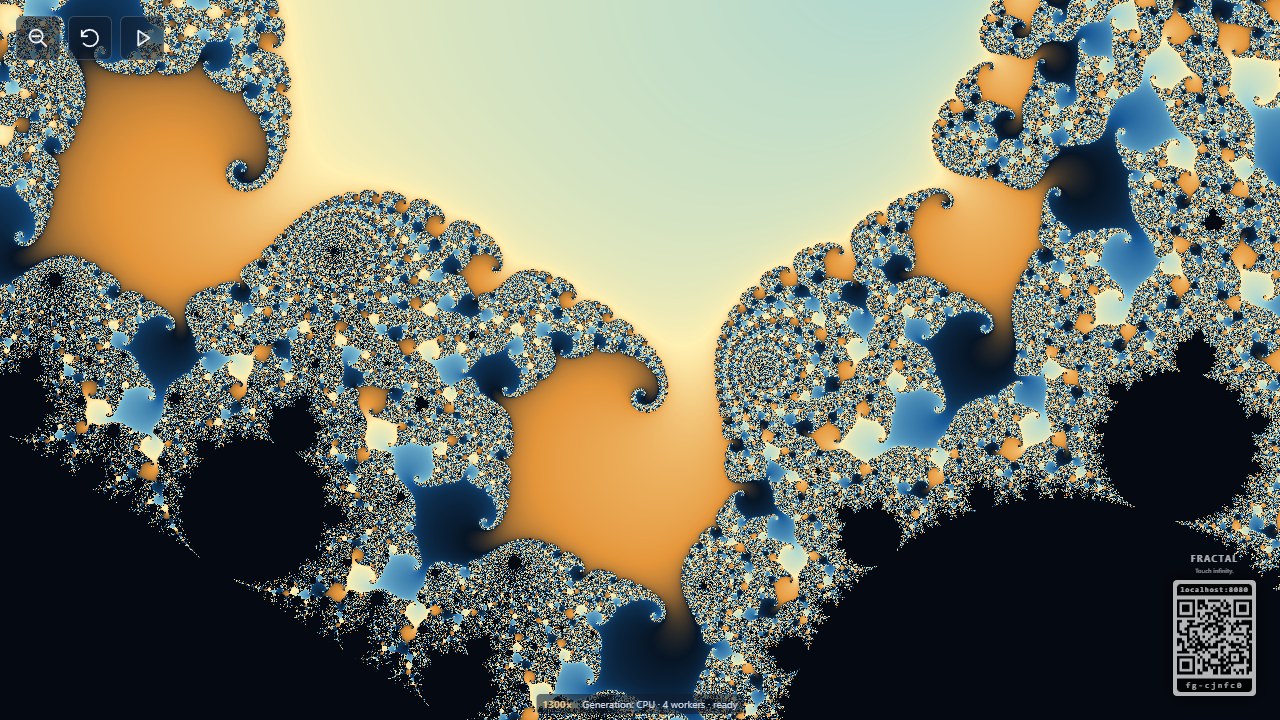
Spiral whirlpool: one of eighteen places to begin your next exploration.
Features
- Explore the Mandelbrot set by touch, or visit eighteen destinations.
- Share one view with several phone controllers.
- Six palettes, optional colour animation and relief shading.
- Adjustable zoom pace, detail and automatic tours.
Your first journey
- Open Fractal on your display, or launch it from Visuals in the RCWeb app menu.
- Click or tap an interesting edge to zoom towards it. Each touch moves twice as close by default.
- To use your phone, scan the display's QR code. Phones already in the room follow automatically when you launch Fractal from the app menu.
Explore solo, pass control between friends, or use several phones in the same room. Everyone sees the same view; the display takes one zoom at a time. No scores, rounds or time limit: choose whatever catches your eye.
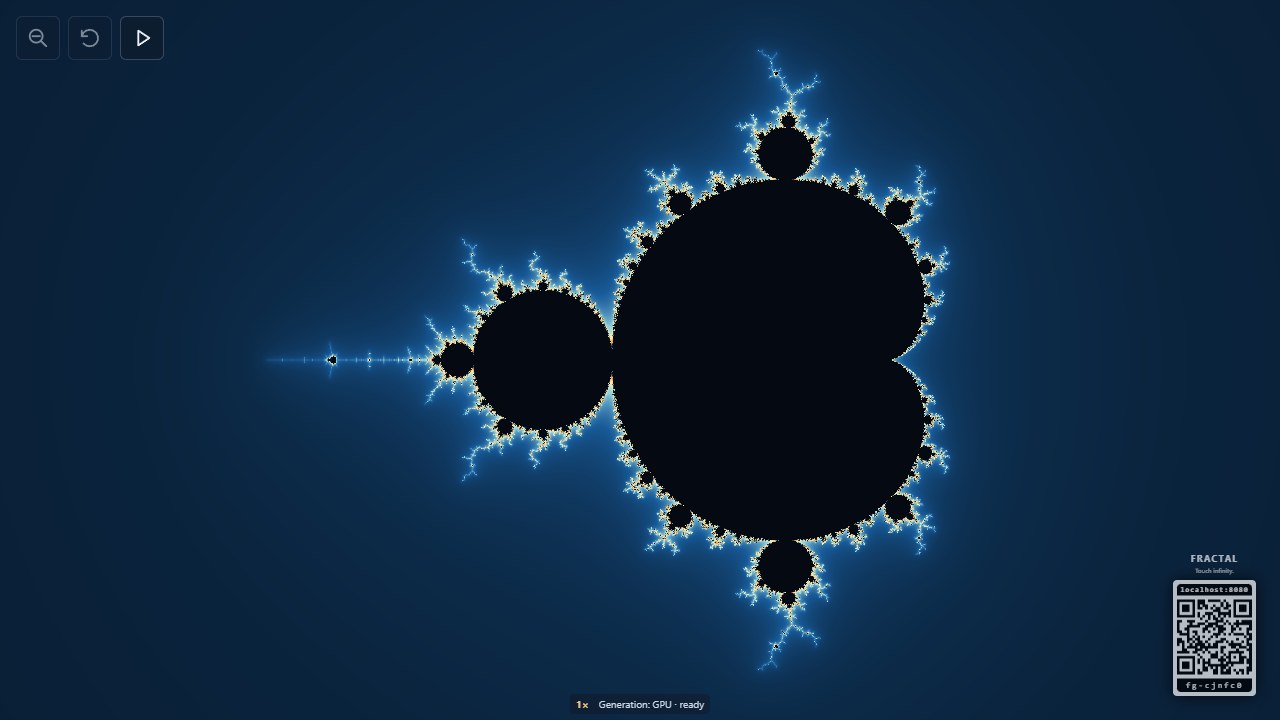
Start with the whole set, then follow its bright coastline into finer detail.
A few controls, a lot to explore
The display keeps its controls in the top-left corner:
- Magnifying glass with minus: zoom out along your recent route. It stays visible but dims at the widest view.
- Circular arrow: reset to the whole set, including during a zoom. It dims when you are already reset.
- Play / Stop: begin the demo immediately, or stop the current demo or destination journey after its current zoom step.
The corner-frame icon at the top right opens fullscreen. The small number at the bottom shows your magnification. During a journey, the location name appears in the bottom-left corner; it is a label, not a button.
Your phone mirrors the picture. Tap its preview to choose the next point, use Zoom out or Reset view, and return through Back to apps when you want to choose something else. Returning to the app menu leaves the display running.
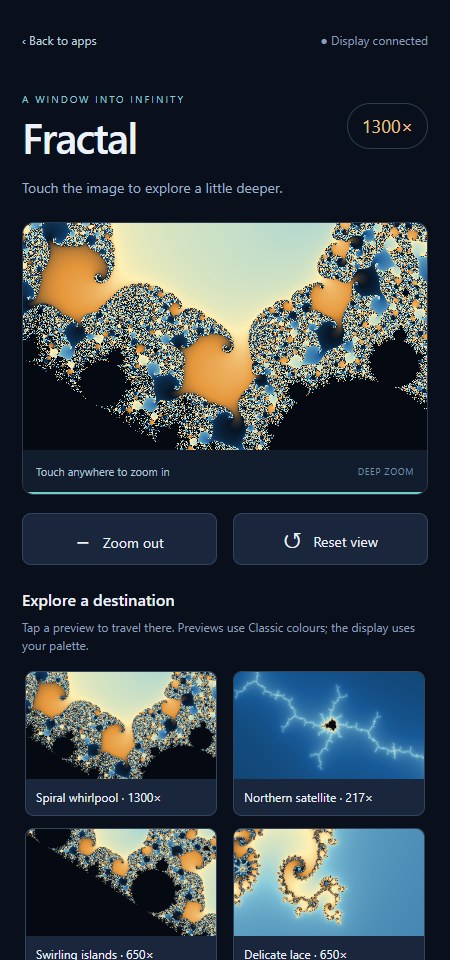
Your phone becomes a touch remote for the shared screen.
Skip straight to somewhere extraordinary
Open Explore a destination on your phone and pick a thumbnail. Fractal travels there smoothly, zooming out first when the new destination is elsewhere in the set.
Try Spiral whirlpool for tightly wound curves, Snowflake for delicate branching, Square pattern for surprising geometry, or Carousel for a much deeper journey. The collection also includes Twin spirals, Lacework spiral, Spiral-pair minibrot, Seahorse Valley and Elephant Valley.
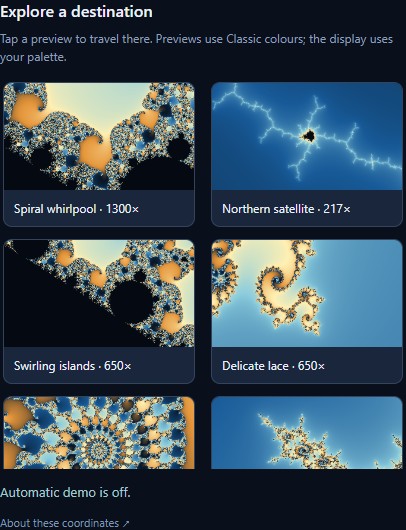
Eighteen destinations, each with a preview and a magnification to show how far you will travel. Scroll the gallery to see them all.
Thumbnails use the Classic palette. Your selected colours and the display's shape apply to the actual journey, so the same destination can feel very different on your next visit.
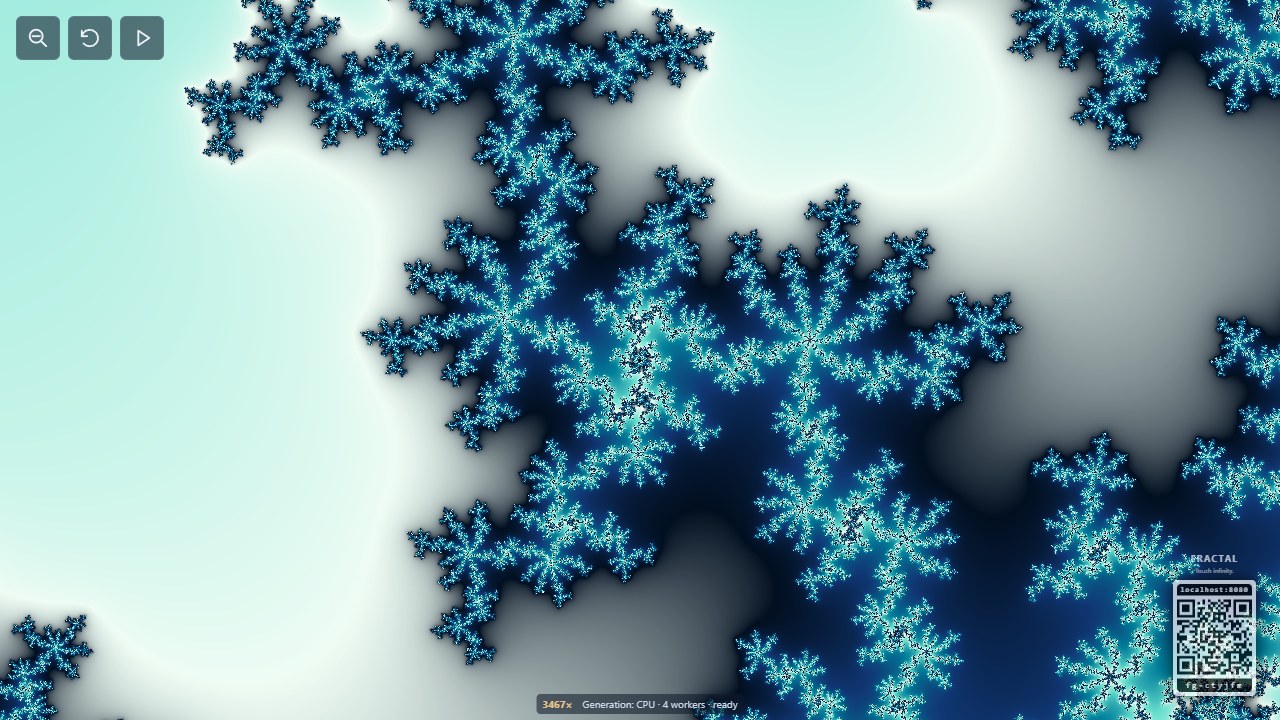
Snowflake in Ocean: teal and ice colours trace its delicate branches.
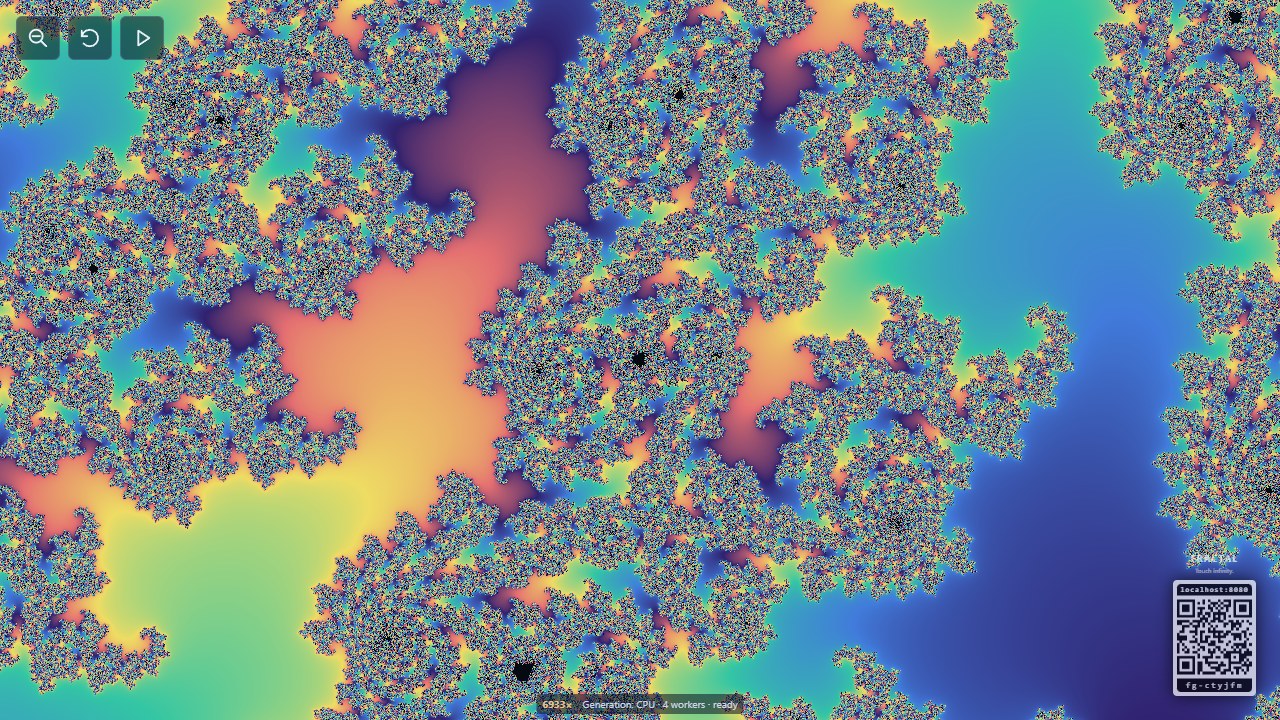
Twin spirals in Rainbow: follow the coloured bands around the paired curves.
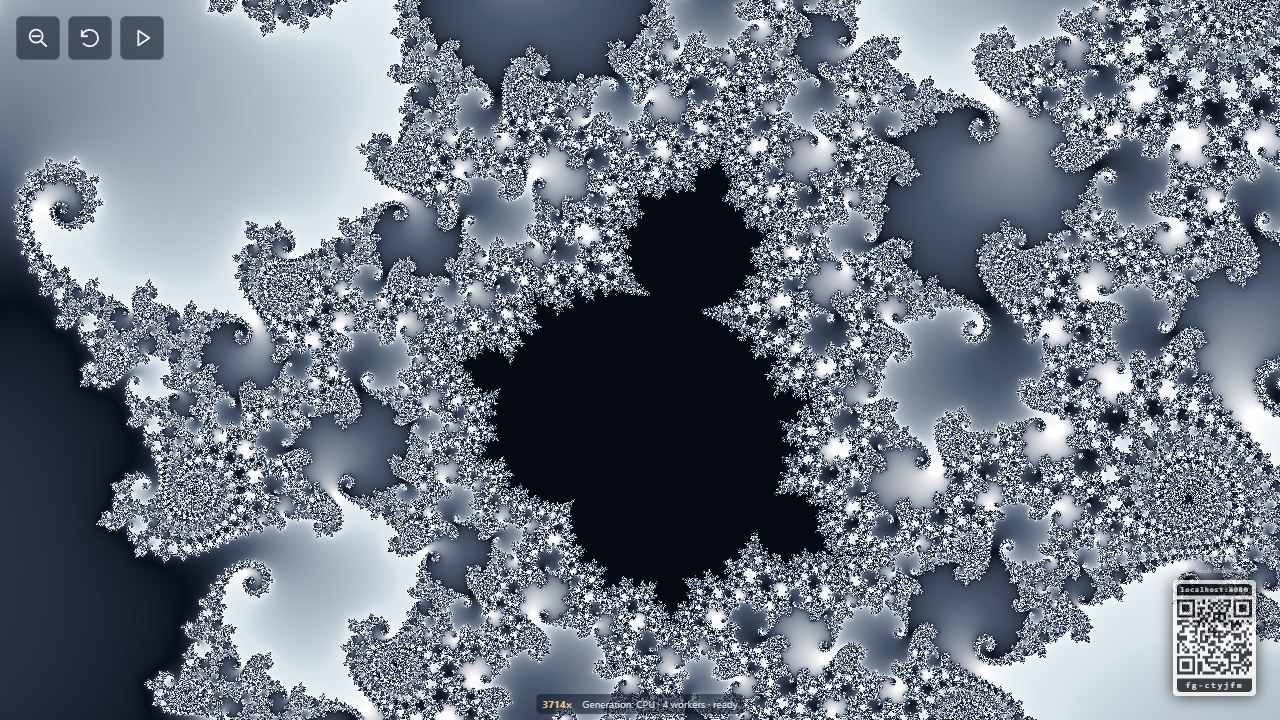
Seahorse island in Monochrome: a miniature Mandelbrot set among silver-and-ink filaments.
Let the demo take the lead
Press Play on the display for an immediate tour. Each destination rests on screen for five seconds, then the view pulls back and heads somewhere new. Play works even when automatic demo is switched off.
By default, a demo also starts after one minute without input. In Colour & options, change Demo delay to 30 seconds, 1, 2, 5 or 10 minutes, or turn automatic starts off. Stop with the dedicated square icon, or take control through the display or phone. Reset view returns to the whole set immediately. Stopping a tour keeps your chosen idle delay.
Make it yours
Open Colour & options on your phone to change the character of the image:
- Six palettes: Classic blue and gold, Ocean teal and ice, Fire amber and crimson, Aurora violet and mint, Rainbow, or Monochrome.
- Living colour: palette animation is off by default. Enable it to slowly cycle the colours; adjust colour offset, spacing or reversal for a different finish.
- 3D relief shading: add highlights and shadows that give the patterns a carved, textured appearance.
- Your pace: choose 1.5×, 2× or 4× per touch, and separate zoom-in and zoom-out times from 0.7 to 8 seconds. Defaults are 3 seconds in and 1 second out.
- Your display: choose Automatic, Standard or High detail, and hide the QR invitation after everyone has joined if you prefer.
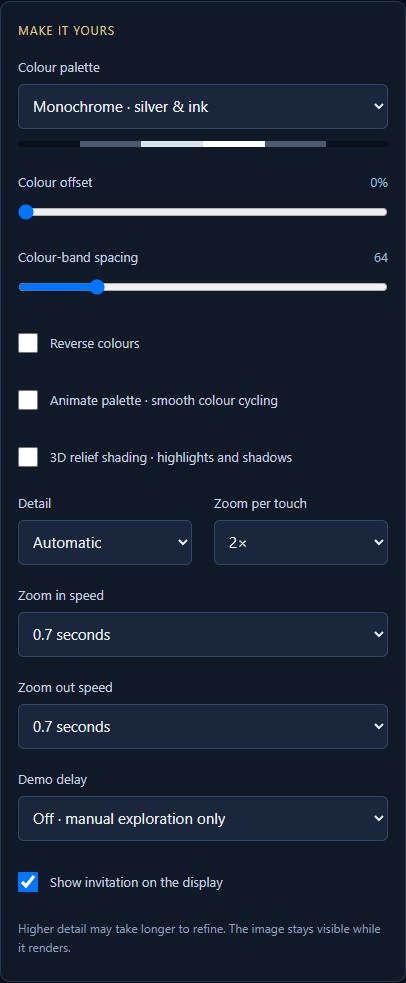
The phone's Colour & options panel brings the display settings together.
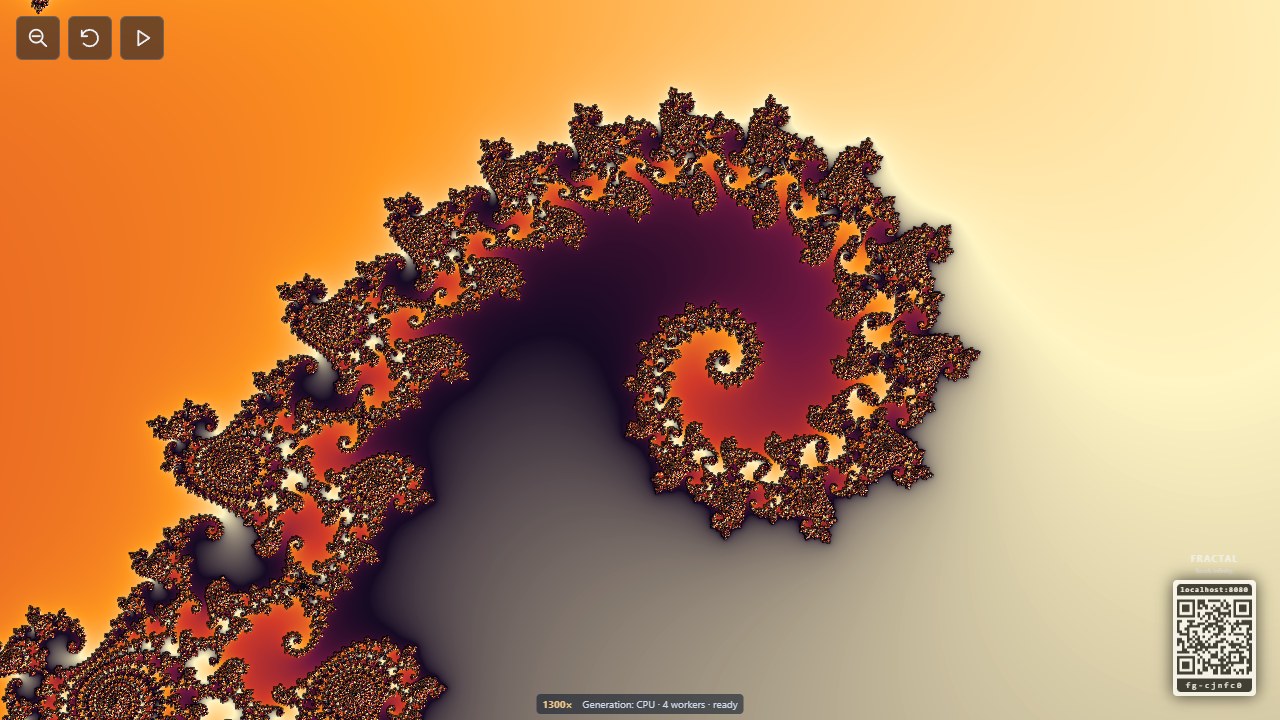
Shepherd crook spiral in Fire, with relief shading bringing out ridges and folds.
Preferences are saved in the display browser and shared with the phones. Reset view keeps them. Reopening the display begins a fresh exploration with your saved look; it does not resume the previous zoom or demo.
Keep Fractal on your home screen
Use your browser's Install app or Add to Home Screen command while viewing Fractal. The installed viewer opens in its own app window and remembers the room used at installation. You can explore directly there or connect a phone as usual.
Fractal works in landscape and portrait. Installation needs a supported browser and a secure connection. It remains an online RCWeb app: the server must be reachable to open it and keep devices connected.
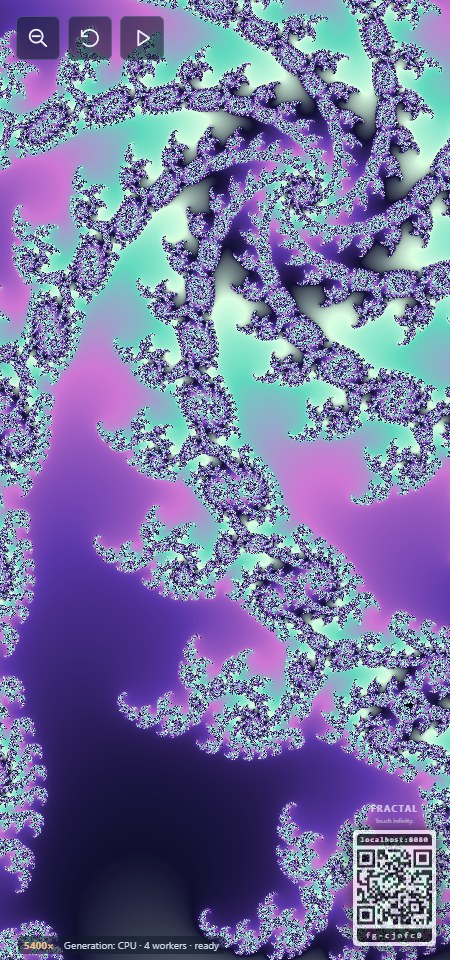
Square pattern in Aurora, framed for a portrait screen.