RCWeb Quiz Pro Control
Quiz Pro Control turns a phone into a private answer pad for the colourful quiz-pro game-show display. It lets each player join by name, choose a quiz topic, submit or change answers, follow the countdown, and see personal results and final standings.
The controller is designed for quick touch play in portrait orientation, with large answer buttons, clear connection feedback, and no app installation or account required.
- Phone controller:
/quiz-pro-c/ - Shared display:
/quiz-pro/
Features
- Choose a quiz topic and answer privately.
- Change answers while a question remains open.
- See your result, score and final standings.
Screenshots
How to join
- Open
/quiz-pro/on a TV, projector, laptop, or other shared screen. - On your phone, scan the QR code shown by the display. This opens Quiz Pro Control in the same RCWeb room automatically.
- Enter the name you want to show on the scoreboard and tap Join quiz.
- Wait for the display to open topic selection or show the current question. If a game is already running, the controller synchronizes with it when you join.
You can also open /quiz-pro-c/ directly, but the controller and display must have the same r room value in their URLs to communicate.
How to play
When topic selection opens, tap one of the 15 illustrated quiz packs. The first valid choice made on any controller or on the shared display locks in the next quiz for the entire room.
Each quiz contains 10 questions. When a question appears:
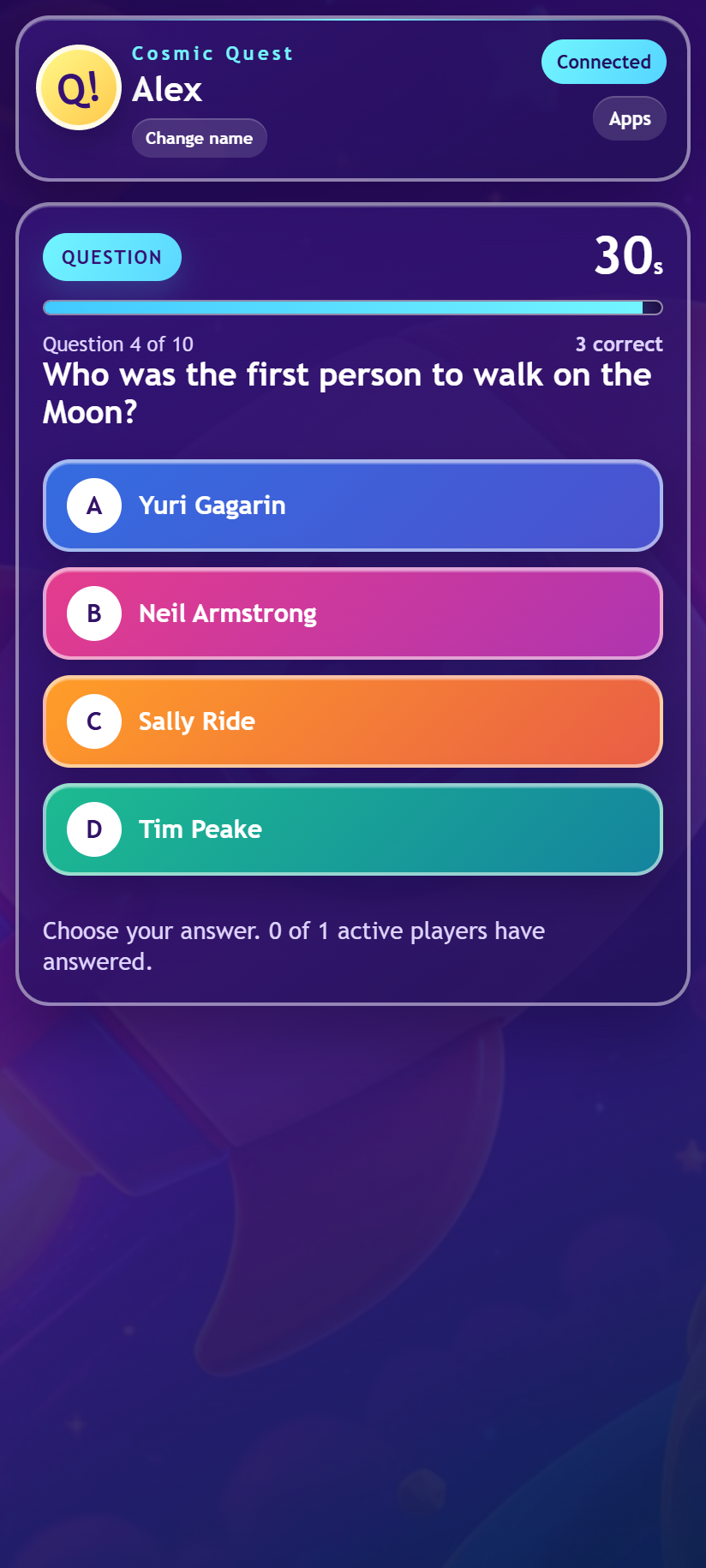
- Read the question and watch the 30-second countdown.
- Tap an answer to submit it. Supported phones give a short vibration to confirm the tap.
- Tap a different option if you want to change your answer while the round is still open.
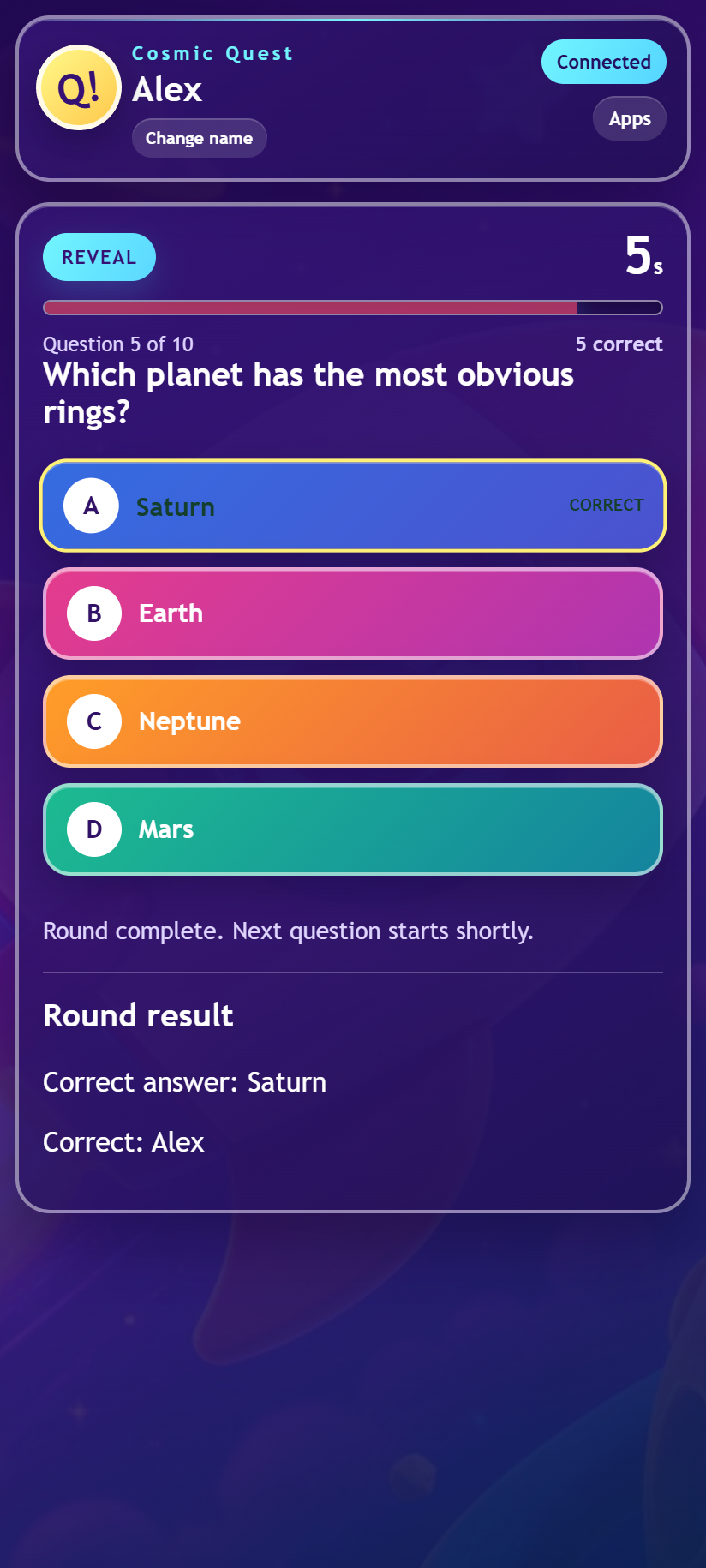
- Wait for the reveal. The correct answer, your result, and the names of the players who answered correctly appear on the controller.
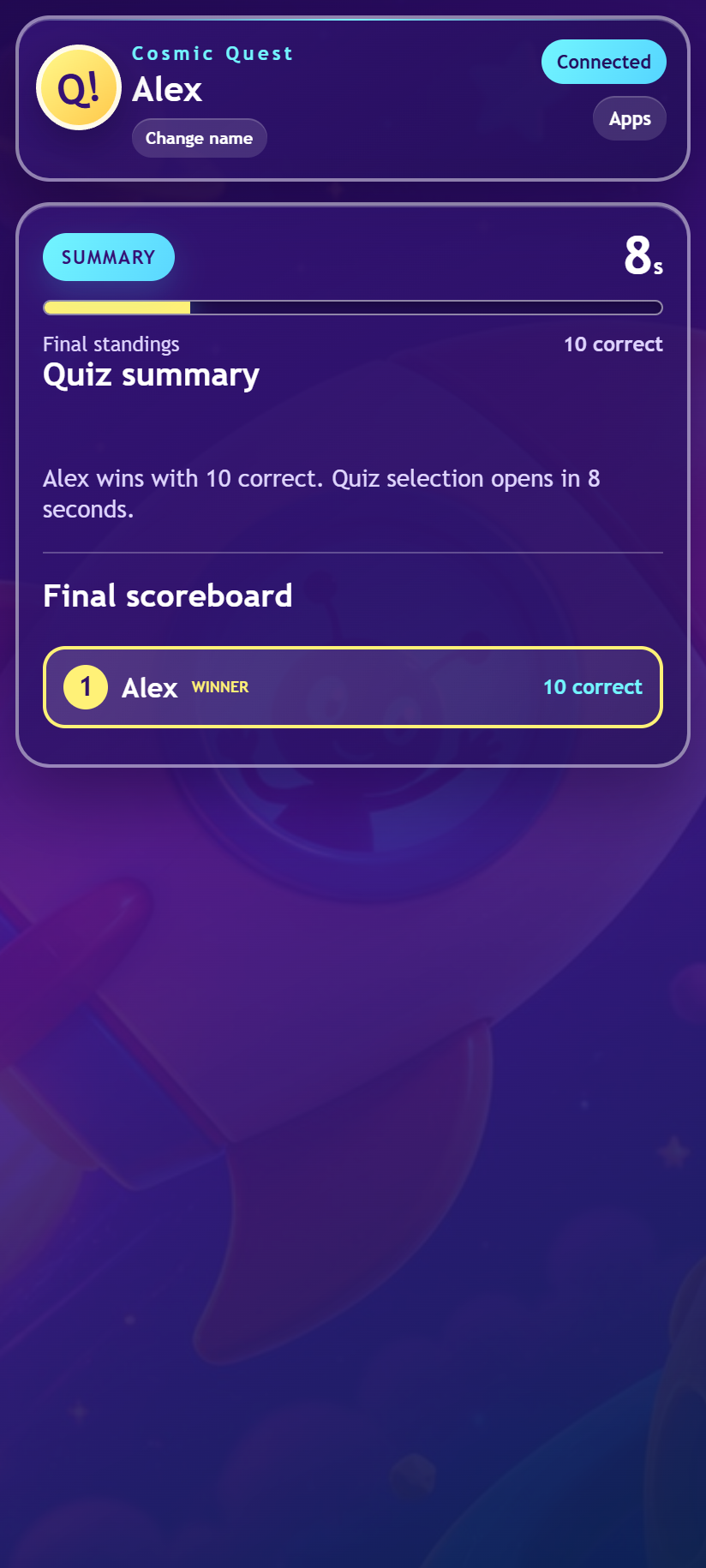
Every correct answer is worth 1 point. The round can end before the timer reaches zero when every active player has answered. After the tenth question, the controller shows the ranked final scoreboard and identifies the winner or tied winners. Topic selection then opens again for the next game.
What the controller shows
- Current connection state and player name
- Illustrated topic selection with suggested and chosen packs
- Question number, countdown, and current score
- Large private answer buttons and the currently selected option
- How many active players have answered
- Correct or incorrect reveal styling and sound
- Round summaries and final standings
Player tips
- Scan the display's QR code whenever possible so the room is selected correctly.
- Keep the controller page open until the quiz finishes; closing it marks that player as disconnected.
- Tap an answer again only if you mean to keep it, or tap another option to change your choice before the reveal.
- If sounds are muted by the browser, joining or tapping an answer provides the interaction needed to enable them.
- The controller provides vibration only when the phone and browser support vibration.
- Use the Apps button to return to the room's controller app menu.
Names and reconnecting
Your name and place are remembered in this browser. Use Change name to update your scoreboard name. After a connection interruption, the phone rejoins and recovers the current topic, question, answer and score from the display.